
Lists are fixed groups of customer profiles. Use them when membership should be assigned deliberately and remain stable until a person or connected process changes it.
A list does not evaluate conditions. If membership should change automatically according to profile properties or customer activity, use a segment instead. Keep reading: Lists vs. segments.
Create a list
- Go to Audience.
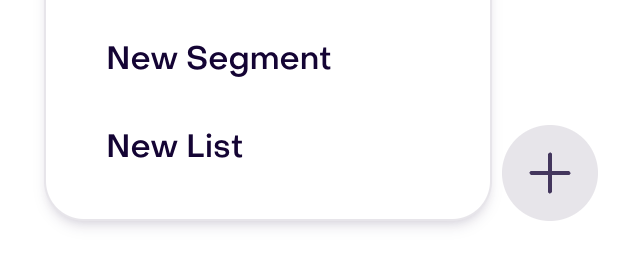
- Select the + button near the bottom-right corner.
- Select New List.
- Enter a unique, descriptive name.
- Select Save changes.
Name the list for what membership represents. For example, Store event attendees or Imported loyalty members is more useful than New list or a campaign date that will lose context later.
Add one customer profile
From Audience, open the customer profile you want to update and find the Lists property.
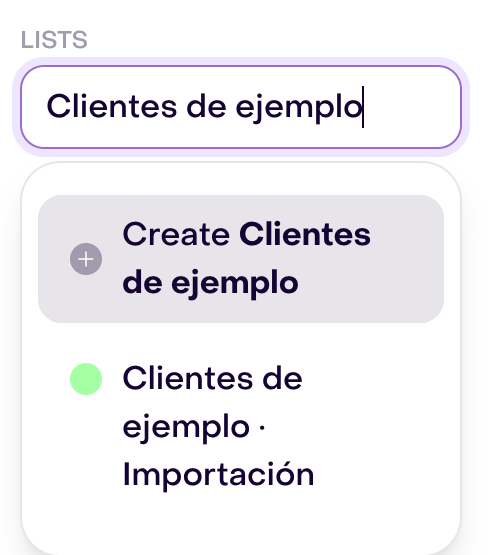
Search for and select the list. Hellotext adds the profile and shows the list as a value on the profile. To remove the profile later, select the remove button beside that list value.
Adding a profile to a list does not change the customer’s subscription status.
Add or remove multiple profiles
Use a bulk update when the same membership change should apply to several profiles:
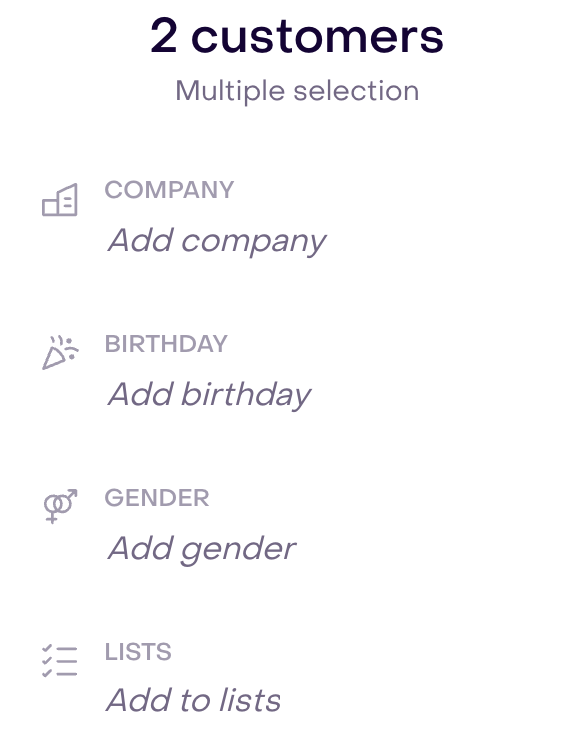
- In Audience, open a list if you want to limit the selection to its profiles.
- Select at least two profiles. The Multiple selection pane opens automatically.
- In that pane, find the Lists property.
- Choose the lists to add profiles to and the lists to remove them from.
- Review the changes and select Apply to … customers to confirm them.
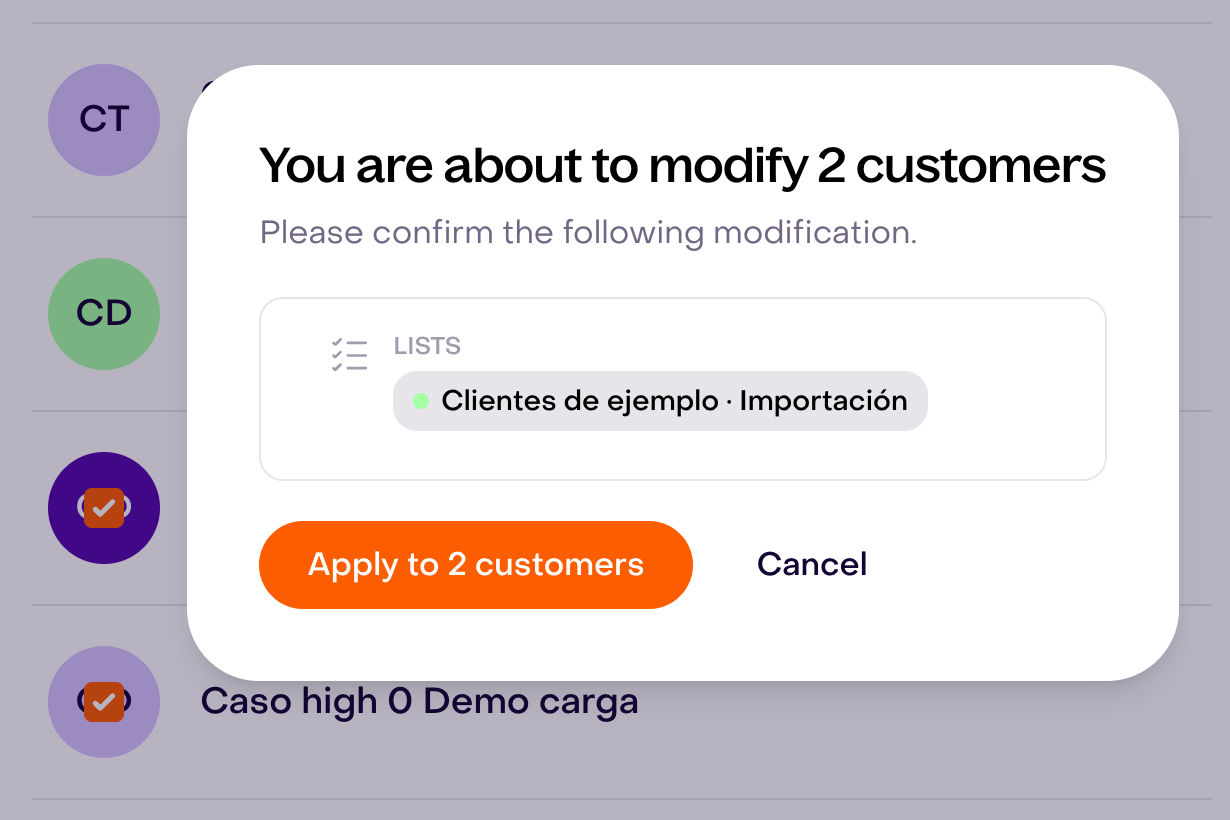
Large updates run in the background and show their progress. Wait for the update to finish before checking the final profile count or using the list as an audience.
Add profiles through an import
When importing customer profiles, you can add the imported profiles to one or more existing lists or create a list for that import.
This is useful when you need to preserve the imported cohort for review, QA, or later use. For example, a list named CRM migration - review lets the team inspect those profiles without trying to recreate the original import through dynamic conditions.
An import can create list membership and update profile data, but list membership does not confirm consent. Review the subscription choice separately during the import.
Keep reading: Import customer profiles.
Add profiles from a journey
A journey can add a customer profile to a list through a step that updates the Lists property.
Use this when reaching a point in the journey should record stable membership, such as completing an onboarding path, registering interest, or entering an operational follow-up group.
The list records that the journey added the profile. It does not continue evaluating the journey conditions after that point like a segment would.
Understand integration-managed lists
An integration can create and update list membership from an external source. These lists are still explicit groups; Hellotext is synchronizing the membership instead of calculating it from segment rules.
Some source-managed lists, such as lists synchronized from Shopify, cannot be renamed in Hellotext. Their source icon helps distinguish them from lists created manually. Use the source system when that membership or name is controlled there.
Use lists in audiences and segments
Lists can be used to:
- Include or exclude a fixed group when selecting a campaign audience.
- Preserve an imported or operational cohort.
- Build a segment condition based on list membership and combine it with profile or activity rules.
- Give the team a stable group to search, review, export, or update.
Review overlapping inclusions and exclusions before sending. If a profile is included by one audience source and excluded by another, the exclusion removes it from the campaign audience.
Rename a list
In Audience, find the list in the Lists group and use its edit button. Enter a unique name and select Save changes.
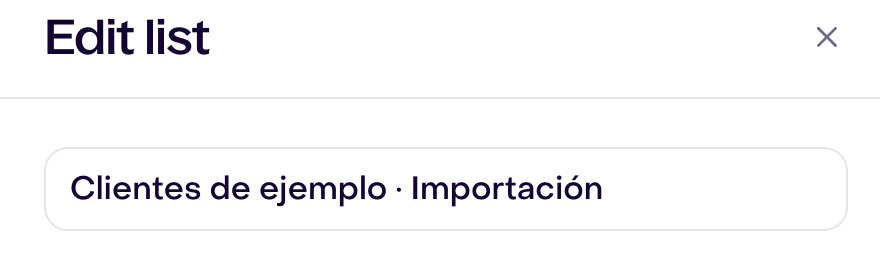
Renaming the list does not remove its profiles. A list controlled by an integration may not allow its name to be edited.
Delete a list
Open the list editor and select the trash button. Deleting a list removes the group and its membership records; it does not delete the customer profiles that belonged to it.
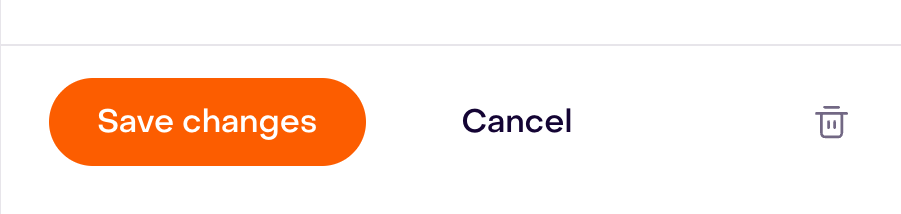
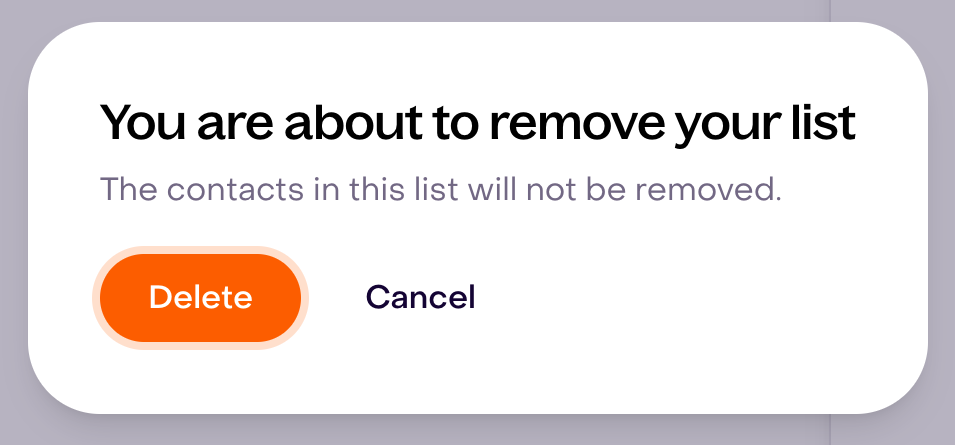
Before deleting, review campaigns, segments, journeys, or operating processes that depend on that list. If a draft campaign uses it, Hellotext asks you to confirm because deleting the list also removes that audience reference from the draft.
Membership does not grant consent
A customer profile can belong to a list while being unsubscribed, unconfirmed, or blocked, or while having an invalid or unreachable address for the channel you plan to use.
Before messaging a list, check channel eligibility and apply the required exclusions. Never use list membership as evidence that the customer opted in.
Keep reading: Who can I message? Consent and subscriber status.